

Muslim Wedding Teaser
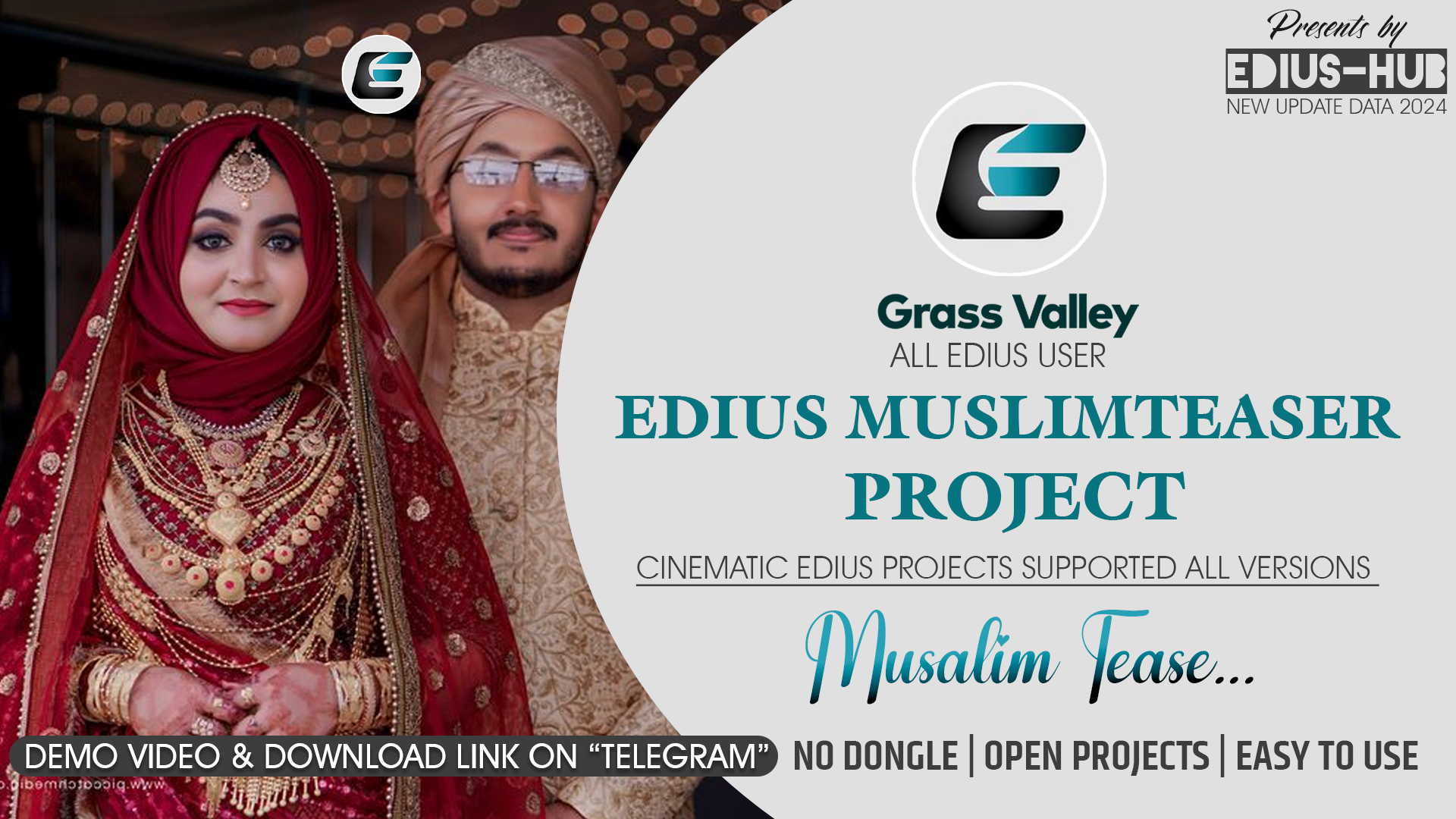
Creating a Wedding Teaser in EDIUS, a popular video editing software, involves several key steps to help you produce an emotional and engaging video that showcases the most memorable moments from the wedding. Below is a complete guide on how to create a Wedding Teaser in EDIUS.
Step 1: Setting Up a New Project
-
Launch EDIUS: Open EDIUS and start a new project.
-
Create a New Project:
- Go to File > New Project.
- Name your project (e.g., “Wedding Teaser”).
- Choose a location to save your project.
- Select your desired project settings. You can match these settings with the video resolution and frame rate from your footage. For example:
- Resolution: 1920x1080 (Full HD) or 3840x2160 (4K).
- Frame Rate: Choose 24fps for cinematic look or 30fps for smooth playback.
- Audio Settings: Set audio sample rate to 48 kHz for professional sound.
-
Set Timeline Settings: Ensure your timeline is set up correctly for editing. Click on Timeline Settings and adjust for resolution, frame rate, etc.
Step 2: Importing Footage and Audio
- Import Footage:
- Go to File > Import > Media or drag-and-drop your video files directly into the Project Bin.
- Select the clips that will feature in the teaser. For a wedding, you might have a variety of footage, including pre-ceremony moments, ceremony shots, speeches, dances, etc.
- Import Music:
- Go to File > Import > Audio or drag-and-drop music into the Project Bin.
- Choose background music that sets the emotional tone of the teaser. You can use soft romantic tracks, upbeat music, or instrumental themes. Make sure the track is copyright-free or that you have permission to use it.
Step 3: Creating the Sequence
-
Drag Footage to Timeline:
- Drag clips from the Project Bin to the Timeline in order. Start with the opening shot and arrange clips in a sequence to create a narrative.
- You may choose to begin with an establishing shot of the venue or the bride and groom preparations.
-
Trim Clips:
- Use the Trim Tool to cut footage and remove any unwanted sections.
- Shorten clips to only include the highlights (e.g., vows, kisses, first dance). A wedding teaser is often 1-3 minutes long, so focus on the best moments.
-
Layering Clips:
- Place clips on different video tracks if you want to overlap them. This is useful for creating transitions, fades, or a split screen effect.
- Use the Picture-in-Picture (PiP) tool for creative layering of images (e.g., showing the groom and bride in separate shots).
Step 4: Adding Transitions and Effects
-
Apply Transitions:
- Go to the Transitions Tab and drag a transition (e.g., cross-dissolve, fade, wipe) between clips.
- For a romantic wedding teaser, gentle fades or cross dissolves work well to create a smooth, emotional flow.
-
Add Effects:
- Select a clip and click on the Effect tab.
- You can adjust color grading, brightness, contrast, or add filters for a cinematic look. Wedding teasers often use soft, warm tones to convey a romantic atmosphere.
- Apply Slow Motion (right-click on the clip > Time Effect) to slow down key moments, such as the bride walking down the aisle or a kiss.
-
Stabilize Footage:
- If your video has shaky footage, use the Stabilizer Effect to smooth it out, especially if it's handheld footage.
Step 5: Enhancing Audio
-
Adjusting Audio Levels:
- Add background music to the audio track and adjust its volume to ensure it complements the video.
- You can also reduce the music’s volume during key moments, such as speeches or vows, so the voice is clear.
- Use Audio Keyframes to adjust volume at different points in the video, making transitions seamless.
-
Adding Sound Effects:
- You can import sound effects such as wedding bells, applause, or ambient sounds to enrich the atmosphere. Make sure these sounds blend well with the music.
-
Voiceovers:
- If needed, you can add a voiceover for narration or messages from the bride and groom.
Step 6: Titles and Graphics
-
Adding Titles:
- Go to Titles > New Title to create text.
- For a wedding teaser, you may want to add titles such as the couple’s names, the wedding date, or a romantic quote.
- Use soft, elegant fonts like Serif or Script fonts for the wedding theme.
-
Place Titles:
- Drag the text over the desired clip in the timeline.
- Position the text using the Motion Tab if you want it to animate or move on screen.
Step 7: Finalizing the Wedding Teaser
-
Review and Refine:
- Play back your sequence and make adjustments. Ensure the transitions are smooth and the pacing is right for the teaser’s emotional flow.
- Ensure the music complements the moments in the video and that it ends on a satisfying note.
-
Color Grading:
- Adjust color grading to give the footage a professional look. You can use LUTs (Look-Up Tables) to apply a specific color grade or manually adjust the footage to create the desired mood.
Step 8: Exporting the Video
- Go to File > Export > Export to File.
- Choose Export Settings:
- Set the format (e.g., MP4, MOV).
- Choose the resolution (usually 1080p or 4K, depending on your source footage).
- Ensure the Frame Rate is consistent with your project settings.
- Name and Save:
- Name your video file and select the output destination.
- Render and Export: Click Start to render and export your video.
Tips for Wedding Teaser Editing:
- Focus on the Emotions: A wedding teaser should evoke emotions, so focus on moments like the bride and groom’s reactions, vows, first kiss, and dance.
- Keep it Short and Sweet: Aim for 1 to 3 minutes. Shorter teasers keep the audience engaged and eager to see the full wedding video.
- Music Is Key: Choose music that enhances the emotion of the moments. Consider soft, romantic instrumental tracks or songs with personal meaning to the couple.
- Narrative Structure: Even though it’s a teaser, tell a mini-story. Start with the preparations, then build up to the ceremony highlights, and end with the celebrations.
- Don’t Overdo Effects: Keep the focus on the moments. While effects can enhance the video, overuse can detract from the emotional impact.
By following these steps, you'll be able to create a beautifully crafted wedding teaser using EDIUS, showcasing the best moments of the day with emotional music, smooth transitions, and captivating visuals.
