

PUNJABI HIGHLIGHT PROJECT NEW 2024 | www.edithub.net
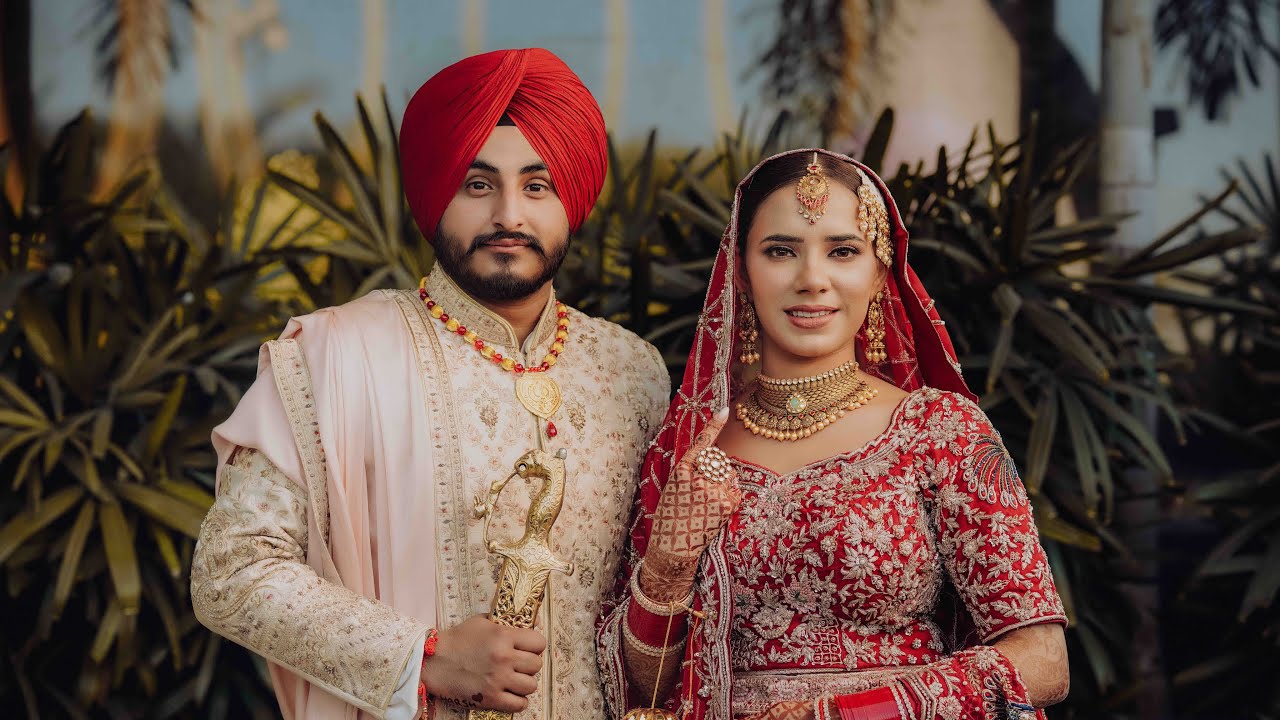
PROJECT:- Highlights
VERSION:- 8/9/10 & 11 More New
FILE:- .ezp
Contact EDIT HUB
E-mail support@edithub.in | Call -WA +91 89288-65810
Creating a wedding highlight project in EDIUS video editing software involves several key steps. Here’s a guide on how to approach it, along with how to use text generators for bullet points in the project:
1. Set Up Your Project
• Open EDIUS and create a new project.
• Select the project settings based on your footage (e.g., resolution, frame rate).
• Import your media (video, audio, images) into the project bin.
2. Organize Your Footage
• Sort your footage into different folders (e.g., ceremony, reception, details).
• Use markers to label important moments in the video (e.g., vows, kiss, first dance).
3. Create a Rough Cut
• Drag clips onto the timeline and arrange them in chronological order.
• Trim and edit clips to create a flowing story.
• Use transitions like cross dissolves between clips for smooth scene changes.
4. Add Music
• Import a background track (wedding music, instrumental).
• Sync the music to the visuals, adjusting clip lengths to match the beat.
• Fade in and out the music at the beginning and end of the highlight.
5. Add Text Using Text Generator
• Create Title Text:
• Go to the Title menu and select New Title.
• Choose a template or create custom text.
• Add Bullet Points for Important Moments:
• Use the Text Tool to type out each bullet point (e.g., “The Vows,” “First Dance,” “Cutting the Cake”).
• Animate the text with subtle effects like fade-in or sliding in from the side.
• Adjust the font, size, and color to match the wedding theme (e.g., elegant fonts, soft colors).
• To add bullet points, use the format like:
• First Dance
• Wedding Vows
• Cake Cutting
• Reception Highlights
6. Apply Colour Grading
• Adjust the contrast, saturation, and brightness to give the video a cinematic look.
• Use LUTs (Look-Up Tables) or manual colour correction tools for consistency.
7. Add Transitions and Effects
• For smooth scene transitions, use crossfade, dip to black, or wedding-specific effects like sparkle or light leaks.
• Apply slow-motion for emotional or significant moments.
8. Final Touches
• Add any special effects like light bokeh for dreamy moments.
• Make sure all audio levels are balanced, especially if there are speeches.
• Check for smooth transitions and timing between clips.
9. Export the Project
• Once satisfied, go to File > Export to render the final video.
• Choose the appropriate output settings (e.g., resolution, file format) for the delivery platform (e.g., YouTube, social media, or DVD).
This workflow will help you create a wedding highlight video in EDIUS, incorporating bullet-point text for key moments throughout the film.
