

Instagram Reel Project Save The Date Invitation
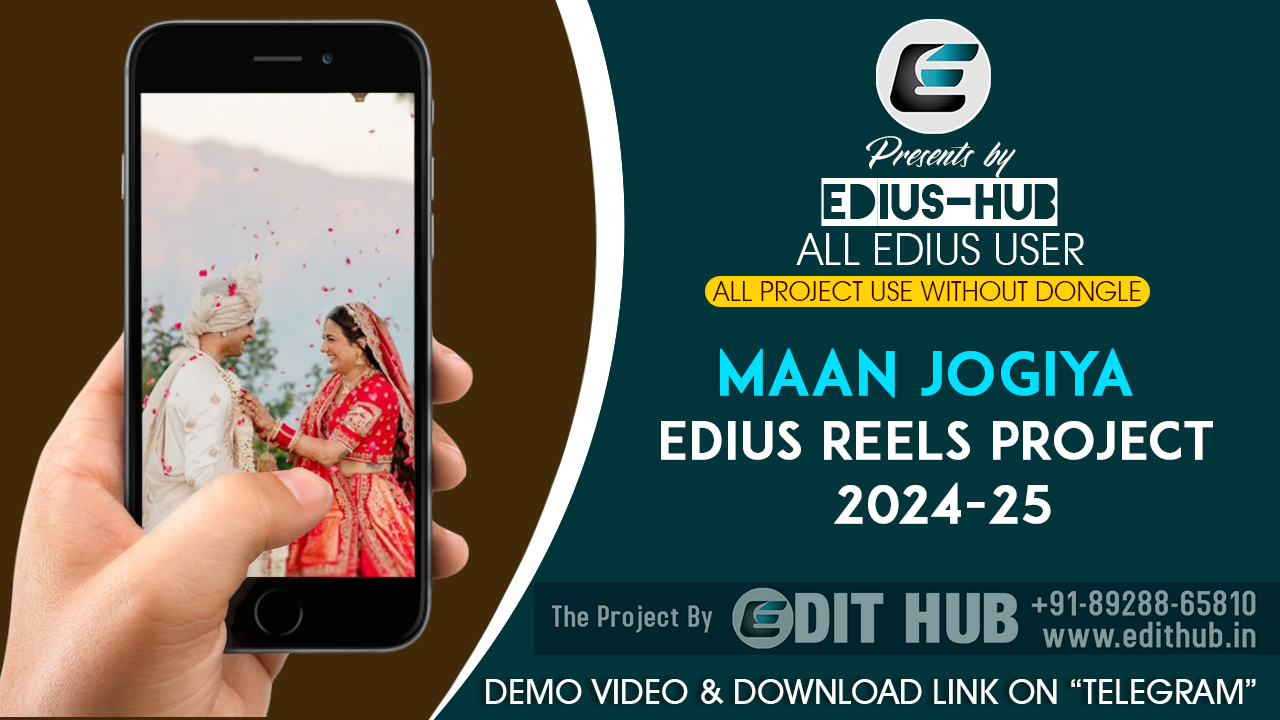
PROJECT:- Instagram Reel Project
VERSION:- 8/9/10 & 11 More New
FILE:- .ezp
Contact EDIT HUB
E-mail support@edithub.in | Call -WA +91 89288-65810
To create a vertical Instagram Reel project inside EDIUS video editing software, follow these detailed steps to set up the project with the correct settings:
1. Create a New Project
- Open EDIUS.
- Go to File > New Project (or use the shortcut Ctrl + N).
2. Set Project Settings
In the New Project window, you will need to adjust the settings to create a vertical format project suitable for Instagram Reels.
Step-by-step project setup:
- Project Name: Give your project a name and choose a location where you want to save it.
- Video Format:
- Select "Custom" as the video format from the drop-down menu.
- Resolution: Set the resolution for vertical video. Instagram Reels requires a vertical aspect ratio of 9:16, so the dimensions should be 1080 x 1920 pixels (height x width). Set:
- Width: 1080 px
- Height: 1920 px
- Frame Rate:
- Set the frame rate to 30 fps or 60 fps based on the type of content you want. Instagram usually supports 30 fps, but if you prefer a smoother look, you can go with 60 fps.
- For 30 fps: Select 29.97 fps (or 30 fps if you prefer).
- Aspect Ratio: The aspect ratio should automatically adjust to 9:16 based on the resolution settings, but verify that it reads correctly.
- Audio Format: Choose a standard audio format like 48 kHz, 16-bit, Stereo for compatibility with Instagram.
3. Video Preview and Timeline Settings
- Under the Timeline Settings (in the New Project dialog), adjust the following:
- Timeline Resolution: Ensure it matches your project resolution (1080x1920).
- Preview Resolution: For smoother playback during editing, you may want to lower this temporarily (e.g., 720p or 540p) if working with high-resolution footage.
- Click OK once all settings are configured.
4. Import Footage
- After setting up the project, import your vertical footage or any content you want to edit.
- To import, go to File > Import (or use Ctrl + I) and select the media files you want to use.
5. Set the Correct Aspect Ratio for Clips (Optional)
If your footage is horizontal (16:9), you will need to adjust it to fit the vertical aspect ratio:
- Right-click on the clip in the timeline.
- Select Clip Properties.
- In the Properties window, adjust the clip's rotation or scale.
- Rotation: Rotate the video 90 degrees clockwise or counter clockwise, depending on its orientation.
- Scale: Scale the footage up or down to fit the 9:16 frame. Use the Position controls to centre the video properly.
- Alternatively, you can crop the footage to fit the vertical aspect ratio (if you don't mind cutting out part of the image).
6. Edit Your Video
- You can now start editing your video as usual:
- Cut clips by selecting and trimming.
- Add effects, transitions, and text. Make sure to adjust all text and elements to be readable on a vertical screen.
- Add audio or background music if needed.
7. Export Your Project
After completing the editing process, it's time to export the project for Instagram:
- Go to File > Export > Export to File (or Ctrl + E).
- In the Export Settings:
- Format: Choose a format compatible with Instagram, such as MP4 (H.264 codec).
- Resolution: Ensure the resolution is 1080 x 1920 pixels (vertical).
- Frame Rate: Set it to match your project settings (30 fps or 60 fps).
- Audio: Make sure to include audio in the export settings and use standard settings (e.g., 48 kHz).
- Select Start to export.
8. Uploading to Instagram
Once you have the exported video, you can upload it directly to Instagram:
- Transfer the file to your mobile device (via cloud storage, USB, or email).
- Open Instagram, and upload the video as a Reel.
Additional Tips for Instagram Reels:
- Keep it engaging: Instagram Reels are short-form content, typically lasting up to 90 seconds. Keep the video dynamic and engaging from start to finish.
- Check orientation: Always double-check that the video stays in the vertical orientation and doesn't have black bars or get cropped inappropriately.
- Aspect ratio consistency: Make sure any text or graphics are also optimized for the 9:16 aspect ratio.
By following these steps, you'll have a properly configured EDIUS project for creating Instagram Reels with vertical video.
